Duplicate contacts pile up fast as your CRM grows. If your agency is spending hours on manual merges every month, your entry process has a gap — and HubSpot's default settings won't catch everything. This guide walks you through three ways to find duplicates, how to merge them correctly, and five rules that stop them from coming back.
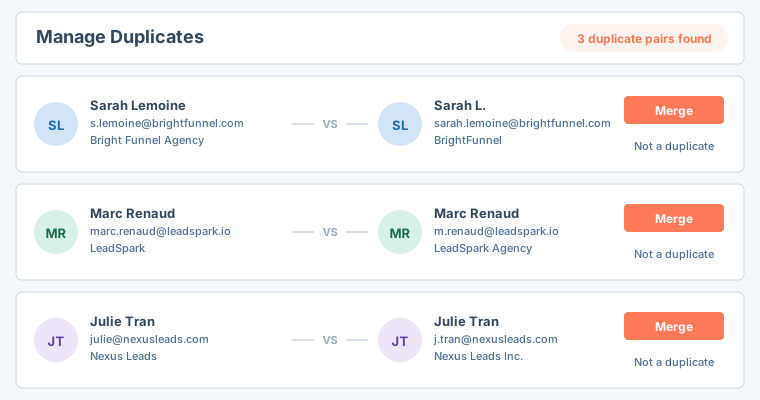
Why HubSpot Duplicate Contacts Keep Appearing
Understanding how duplicates get in is the first step to keeping them out.
Form submissions. Every time a contact fills out a HubSpot form with a slightly different email — a personal address instead of a work one, or a typo — HubSpot creates a new record. Even if the name and company are identical, a different email is enough for the system to treat it as a new contact.
Manual entry. When two people on your team add the same prospect without checking first, you end up with two records. One rep may write "Sarah Jones", another "S. Jones" — same person, different records, no automatic flag.
CSV imports. Importing a trade show list, a purchased database, or a past client export without deduplicating first is one of the fastest ways to flood your CRM with duplicates. A single import of 500 rows can add dozens of contacts already in your system.
CRM migrations. Moving from another CRM — or consolidating two HubSpot portals — almost always produces duplicates. Legacy records rarely match current ones on email format or name capitalisation, so the import logic creates new records instead of matching existing ones.
How to Find Duplicate Contacts in HubSpot (3 Methods)
Method 1: HubSpot's Native Deduplication Tool
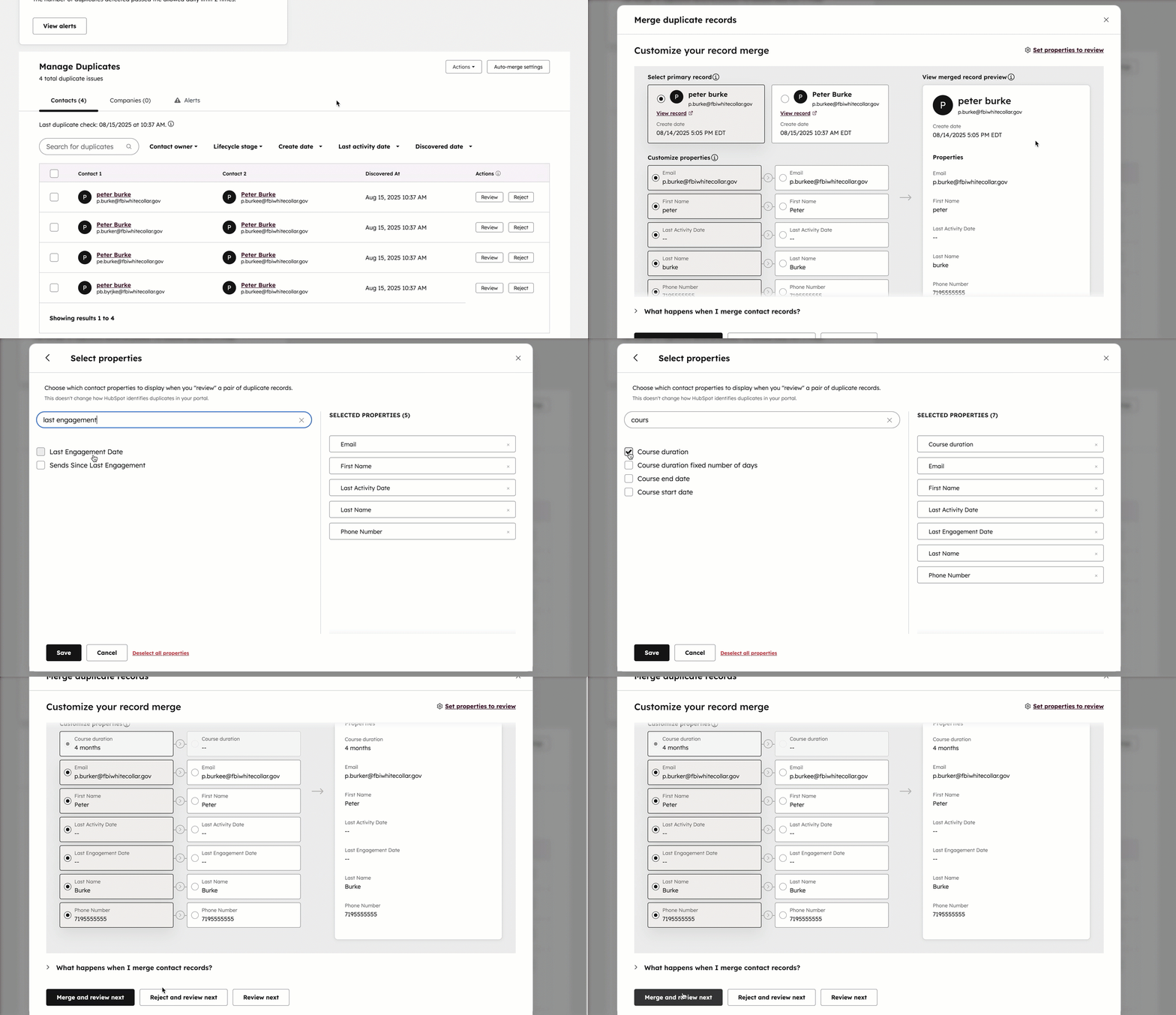
Go to Contacts → Actions → Manage Duplicates. HubSpot will show you pairs it considers likely duplicates, with a side-by-side comparison of each record's properties. You can merge directly from this view.
This tool is available on paid plans (Starter and above) — it is not included in the free plan. Free plan users can still merge contacts manually by opening a record and clicking Actions → Merge, but there is no automated duplicate scan on the free tier: you have to find the duplicates yourself first.
The Manage Duplicates tool works well for small contact lists, but it surfaces pairs one at a time, so working through hundreds of duplicates this way is slow. It also only covers contacts and companies — not deals or custom objects.
Method 2: Export to CSV and Find Duplicates Manually
Go to Contacts → Actions → Export, download all contacts as a CSV, and open the file in Google Sheets or Excel.
Sort by Email column A to Z and scan for consecutive rows with the same address. Then sort by Company Name, then by First Name within that — this catches near-matches like "J. Smith" and "John Smith" at the same company. Once you have a list, merge them directly in HubSpot.
For a repeatable version of this process, see the complete CRM data cleansing guide — it covers deduplication, stale lead removal, missing fields, and how to build a weekly audit routine.
Method 3: Use a Third-Party Deduplication Tool
For contact lists over 1,000 records, the manual approach stops being practical. Tools like Koalify and Insycle connect directly to HubSpot and can identify and merge duplicates in bulk — including across deals and custom fields — on a schedule.
See the full HubSpot CRM review for detail on which native features to use before reaching for a paid tool.
How to Merge Duplicate Contacts in HubSpot (Step by Step)
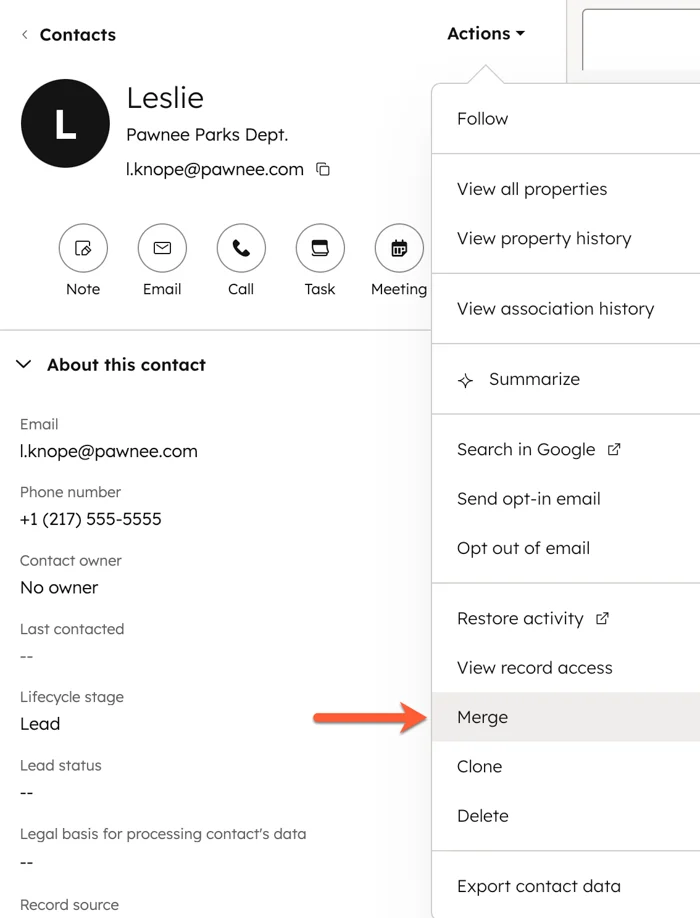
- Open the contact record you want to keep as the master record — choose the one with more complete data.
- Click Actions in the top right, then select Merge.
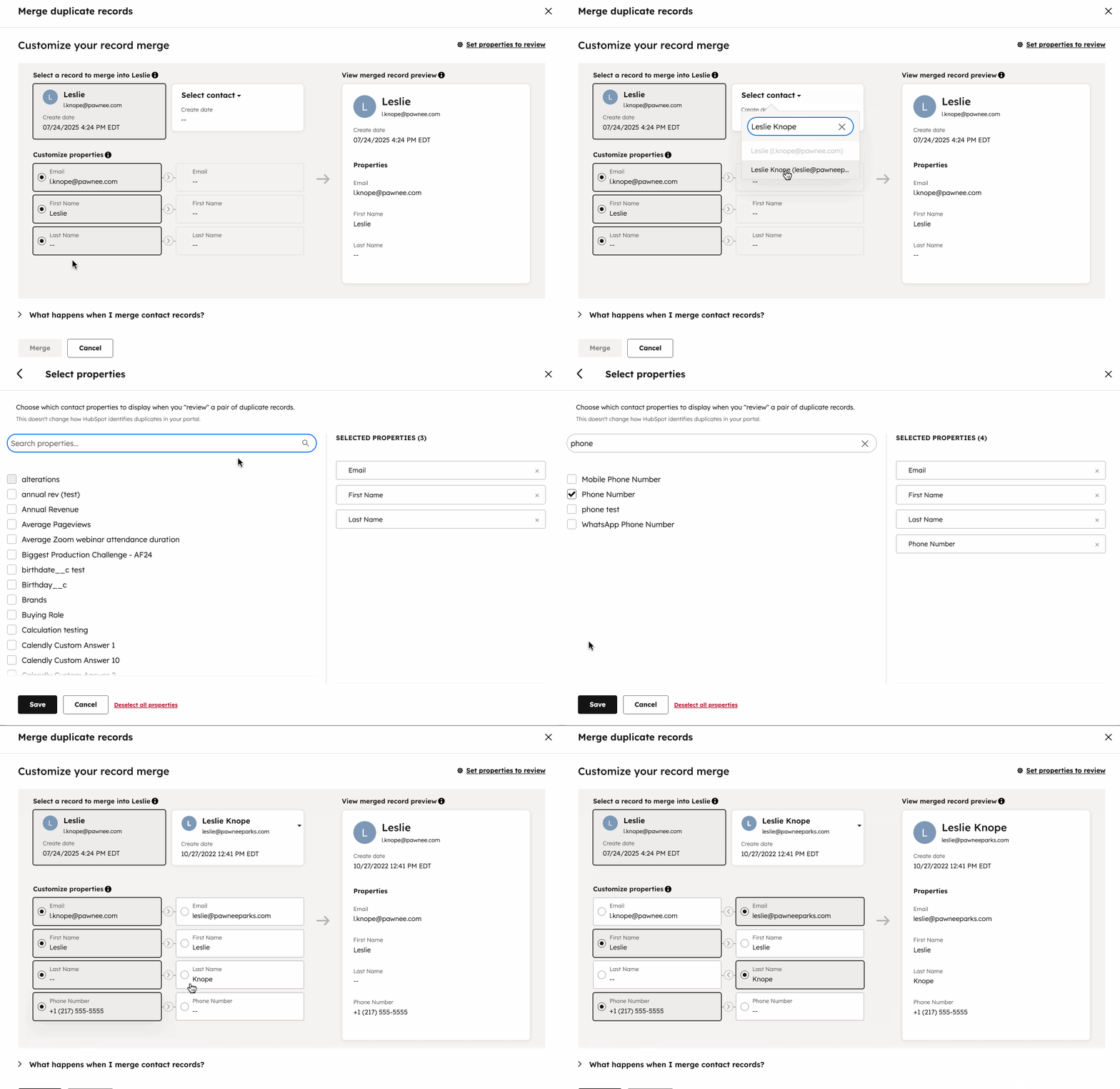
- In the search box, find the duplicate by name or email address.
- In the dialog box, click the dropdown menu, then search for and select the record to merge into the primary record. This is considered your secondary record.
- To choose which property values are retained in the resulting record, click the values you want to keep. By default, the primary record's properties are selected since they are generally kept following a merge.
- To change which properties are displayed when comparing the records, click Set properties to review. Click Apply once you've selected the properties.
- Review the side-by-side comparison. HubSpot keeps the most recently updated property value by default — override this manually for any fields where the older record has better data.
- Click Merge. The duplicate record is deleted and its activity history, deals, and notes are transferred to the master.
Make the record with the more complete email address your master. If both records have the same email, use the one with a deal attached, or the one that was created first.
How to Merge Contacts in Bulk
HubSpot has no native bulk merge feature. The closest workaround is to process the duplicate queue daily — set a 15-minute slot each morning, work through five to ten pairs from the Manage Duplicates view, and keep the count moving down over time.
For agencies with large backlogs, this daily queue approach is the only practical way to clear duplicates without a paid tool. If your list is over 2,000 contacts and the queue is growing faster than you can clear it, a third-party tool will pay for itself quickly.
How to Prevent HubSpot Duplicates From Coming Back
Fixing the backlog helps, but the same duplicates will return if the entry process doesn't change.
- Enable email deduplication on every form. In each form's settings, check that HubSpot's built-in email deduplication is active. This prevents new form submissions from creating a second record when the email already exists.
- Set required fields. Make email address a required field on all forms and import templates. Records without an email are nearly impossible to deduplicate later.
- Train your team. Before adding a contact manually, reps should search HubSpot by email first. One extra step prevents one more duplicate.
- Deduplicate before importing. Sort any CSV by email before uploading. Remove rows where the email already exists in your CRM. Most spreadsheet tools can do this in under two minutes.
- Run a monthly duplicate audit. Use the Manage Duplicates tool or a CSV export to check for new duplicates each month. Catching them early — ten records, not a hundred — keeps the maintenance time short.
When to Use a Paid Deduplication Tool
Not every agency needs a paid tool. Here's a rough guide:
- Under 500 contacts: The native tool and monthly CSV audit are enough.
- 500–2,000 contacts: Manageable manually, but budget two to four hours per month for the audit.
- 2,000–5,000 contacts: A paid tool starts to pay for itself in time saved.
- Over 5,000 contacts: Running deduplication manually at this scale is not realistic. A scheduled, automated tool is the right answer.
Frequently Asked Questions
How do I find duplicate contacts in HubSpot? Go to Contacts → Actions → Manage Duplicates. HubSpot surfaces likely duplicate pairs side by side for review and merge. This tool requires a paid plan (Starter and above). On the free plan, export your contacts as a CSV, sort by email column A to Z, and look for consecutive rows with the same address — then merge them manually from each contact record.
Does HubSpot automatically detect duplicate contacts? Partially. HubSpot's Manage Duplicates tool scans for likely pairs, but it does not automatically merge anything — every merge requires manual confirmation. It also does not scan in real time: new HubSpot duplicate contacts created by form submissions or CSV imports are not flagged instantly. The tool surfaces them during its next scan cycle. On the free plan, there is no automated scan at all.
Is HubSpot's duplicate contact tool free? No. The Manage Duplicates tool (Contacts → Actions → Manage Duplicates) is only available on paid HubSpot plans — Starter ($20/seat/month) and above. Free plan users can still merge individual contacts manually via Actions → Merge on each record, but there is no automated duplicate detection on the free tier.
How do I merge duplicate contacts in HubSpot without losing data? Open the contact record with the more complete data and click Actions → Merge. Search for the duplicate record and select it as the secondary record. Review the side-by-side comparison — HubSpot defaults to keeping the primary record's property values, but you can override field by field. All activity history, associated deals, and notes from both records are merged into the primary. The secondary record is deleted.
How do I stop HubSpot duplicate contacts from coming back? Enable email deduplication on every form, make email a required field on all imports, train reps to search before adding contacts manually, and deduplicate any CSV before importing. Run the Manage Duplicates tool monthly to catch what slips through. If your database is growing fast (1,000+ contacts), a scheduled deduplication tool like Koalify will prevent new duplicates automatically.
What is the best tool for bulk HubSpot duplicate contacts merging? For HubSpot specifically, Koalify is the best value — free up to 10,000 records, with bulk merge, rules-based detection, and unlimited users. Insycle is the better choice if you also need data standardisation, bulk field updates, or multi-CRM support. See the full CRM cleaner & deduplication software roundup → for a side-by-side comparison.
Running a clean pipeline starts with knowing your hygiene score.
We're building a free tool that finds duplicates, stale leads, and missing data in your HubSpot export — 60 seconds, no integrations.