Duplicate contacts piling up, spending hours on manual merges, deals sitting untouched for weeks with no owner and no next step — this is what a neglected CRM looks like at most small agencies. Nobody chose to let it get this bad. The mess accumulated quietly while everyone was busy doing client work. CRM data cleansing is the process of working through that mess in a structured way, so your pipeline actually reflects what's real. This guide gives you a repeatable five-step process, written specifically for agencies running HubSpot, Pipedrive, GoHighLevel, or Close.
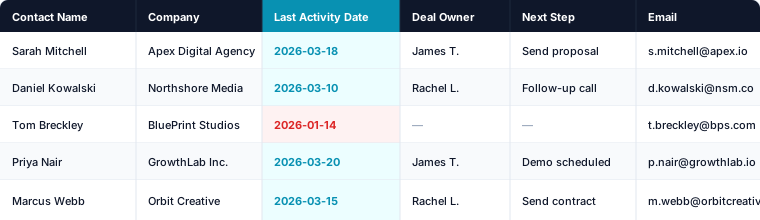
What is CRM Data Cleansing?
CRM data cleansing — sometimes called CRM data cleaning or CRM cleansing — is the process of finding and fixing inaccurate, incomplete, or duplicated records in your CRM. You identify what's broken, correct what can be corrected, remove what can't, and fill the gaps that are making your pipeline reports unreliable. The goal is a pipeline that shows real deals, owned by real people, with a clear next step on each one. For a fuller picture of why this matters for your agency's revenue, read What is CRM Data Hygiene?.
Why Agencies Struggle With CRM Cleansing
Most small agencies don't have a data quality problem — they have an ownership problem. Here's what actually happens in practice:
- No single owner. When data quality is everyone's responsibility, it becomes no one's responsibility. The mess grows quietly until a lost deal or a bad forecast finally forces someone to sit down and clean it up.
- No shared entry standards. One rep types "HubSpot Inc.", another types "Hubspot", a third imports a trade-show CSV with "HubSpot, Inc." — three records for the same company, none of them linked, all of them feeding into your pipeline count.
- No system to catch problems early. Stale leads and missing fields only surface when a rep is mid-call and realises the contact record is three months old and missing an email address.
- Manual merging takes longer than expected. Even when someone does decide to clean things up, finding and merging duplicates one at a time is tedious work that often gets abandoned halfway through.
The result is a pipeline number that feels inflated, forecasts that can't be trusted, and reps spending time on records that should have been archived months ago.
Step 1 — Export Your Pipeline as a CSV
Before you can fix anything, you need to see everything in one place. Export your active pipeline as a spreadsheet so you can sort, filter, and spot patterns that aren't visible inside the CRM interface.
Here's how to export from the most common agency CRMs:
 HubSpot
Step 1 — Navigate to your records:
| Object | Path |
|---|---|
| Contacts | CRM → Contacts |
| Companies | CRM → Companies |
| Deals | CRM → Deals |
| Tickets | CRM → Tickets |
| Custom objects | CRM → select the custom object |
Step 2 — Open the view you want to export:
- Table view: click the Views tab or Add view and select a view from the dropdown. To export all records, open the All [records] view.
- Board view (deals, tickets, and custom objects only): click the pipeline dropdown in the upper left, select the pipeline, then click the view tab. To export all records, open the All [records] view.
Step 3 — Export:
- Table view: click Export in the top right of the table.
- Board view: click Board options in the top right, then select Export view.
Step 4 — Configure the export dialog:
- Select File format (CSV recommended for spreadsheet work)
- Enter a name in the Export name field
- Select the Language of column headers if needed
- (Optional) Click Customize to control what is included:
- Properties: choose between view properties only (default), all properties on records, or all properties and associations
- Associations: up to 1,000 associated record IDs per column (default) or all associated records (CSV only)
- Multiple emails / domains: check the relevant box to include all email addresses or domains
Step 5 — Click Export. HubSpot will email you a download link. The link expires after 30 days.
 Pipedrive
Option A — List view export (available to all users):
- Go to Deals or Contacts and switch to list view
- Apply any filters you need
- Click the ··· (more options) menu → Export to spreadsheet
Option B — Export data tab (global admins only):
- Open the account menu (top right corner) → Tools and apps → Export data
- Select the data type: Deals, People, or Organizations
- Choose Excel or CSV and click Export
- Download from the "Generated exports" list — files are available for 28 days
 GoHighLevel
- Navigate to Contacts from your sub-account → click Smart Lists
- Use Advanced Filters to narrow your selection if needed
- Check boxes next to individual contacts — or click the header checkbox → Select All Contacts
- (Optional) Click Manage Fields to choose which columns appear in the export
- Click More → Export — the CSV downloads immediately
 Close
Close
- Go to Leads Search and apply a Smart View filter (must be from the Contacts tab — not a Leads tab filter)
- Click ··· → Export
- Select the object: Leads, Contacts, or Opportunities
- Choose CSV (opens in Excel/Google Sheets) or JSON (includes Emails, Calls, SMS, Notes — better for large exports)
- Choose Common fields or All fields and confirm
Open the file in Google Sheets or Excel. Don't start making changes yet — this first pass is just about getting a full, honest view of what you're working with.
Step 2 — Audit for Stale Leads
A stale lead is any deal or contact record with no recorded activity in 14 or more days. Stale leads are the most common source of inflated pipeline numbers at small agencies. They make your open deal count look healthy when most of those deals are cold.
Sort your CSV by the Last Activity Date column in ascending order so the oldest records appear at the top. Then apply this simple decision rule to each flagged record:
- Last contact within 30 days: Send one more outreach attempt. If there's no reply, move to archive.
- No contact in 30 or more days, and no reply to prior attempts: Disqualify or archive the record immediately. Don't leave it sitting in your pipeline distorting your numbers.
- Last contact within 14–30 days with an active conversation: Flag for follow-up this week, but make sure it has a scheduled next step.
Going through this step alone typically removes 20–30% of the noise from a neglected pipeline.
Step 3 — Find and Merge Duplicate Contacts
Duplicates are almost inevitable in agency CRMs. They get created when a lead fills a web form, a rep adds the same contact manually, and then someone later imports a CSV from an event or list purchase — three records for one person, sometimes across multiple deals.
In your exported CSV, scan for duplicates using two checks:
- Identical email addresses. Sort the email column A to Z and look for consecutive rows with the same address.
- Same name plus same company. Sort by company name, then by contact name within that. Look for near-matches — "John Smith" and "J. Smith" at the same company are almost always the same person.
Once you've identified duplicates, merge them directly in the CRM:
- HubSpot: Open one contact record → Actions → Merge. Search for the duplicate by name or email and confirm the merge. HubSpot keeps the most recently updated properties by default — review before confirming.
- Pipedrive: Open a person record → click the ··· menu → Merge with. Select the duplicate from the list and confirm. The merged record keeps the data from whichever record you opened first, so open the more complete one.
If your CRM has hundreds of duplicates, working through them one at a time is not realistic. Third-party deduplication tools can identify and merge duplicates in bulk, including across deals and custom fields. See the CRM Cleaner & Deduplication Software roundup for reviewed options when you're ready to explore that route.
Step 4 — Fill Missing Data Fields
Not every missing field matters equally. Focus your attention on the four fields that directly affect whether a deal moves forward or stalls:
- Email address — without it, outreach is impossible.
- Deal owner — unowned deals get ignored by everyone because no one feels responsible for them.
- Next step or scheduled task — a deal with no next action is a deal that will silently stall and eventually go stale.
- Deal stage — if this is blank, your pipeline stages are meaningless and your forecast is fiction.
In your CSV, use the column filter to show only rows where each of these fields is empty. Work through the gaps systematically. For any deal that is missing both an email address and a deal owner at the same time, apply a hard rule: archive it or reassign it today. A deal with no way to reach the contact and no one accountable for it is not a real opportunity — it's clutter that makes your pipeline harder to read.
Step 5 — Set Up a Weekly Cleansing Routine
A one-time cleanup helps, but the problem returns within weeks if there's no ongoing process. The goal is a 15-minute habit that runs every Monday morning before anything else gets opened.
Here's the exact routine:
- Export your pipeline as a CSV (2 minutes). Same export you did in Step 1 — do it fresh each week so you're working with current data.
- Sort by Last Activity Date and flag everything untouched for 14 or more days (3 minutes). These are your at-risk deals for this week.
- Check for empty Owner and Next Step fields (3 minutes). Filter the relevant columns and note how many gaps there are.
- Fix the top 3 issues before opening your inbox (5 minutes). Merge one duplicate, assign an owner to one unowned deal, archive one stale lead. Three actions is enough to make meaningful progress without derailing your morning.
- Track the number of flagged issues each week. If the count goes down week over week, the routine is working. If it keeps climbing, the entry standards need tightening — see Step 2 again.
Do this every week for 4 weeks and your pipeline will look unrecognisable.
Tools That Help With CRM Data Cleansing
You don't need a paid tool to get started — the manual process above works. But the right tools can significantly cut the time spent on each step:
- HubSpot native deduplication — available on all plans, free to use. Surfaces suggested duplicate contacts and organisation records for manual review and merge. Does not cover deals or custom objects.
- Pipedrive duplicate detection — built into the Contacts section. Flags records with matching names or email addresses and prompts you to merge them. Requires confirming each merge individually.
- Third-party deduplication tools — handle bulk deduplication across contacts, deals, and custom fields, and integrate directly with your CRM to run on a schedule. See the CRM Cleaner & Deduplication Software roundup for reviewed options when you're ready to go beyond the manual approach.
Frequently Asked Questions
What is CRM data cleansing? CRM data cleansing — also called CRM data cleaning or CRM database cleansing — is the process of finding and fixing inaccurate, incomplete, or duplicated records in your CRM. It includes removing stale leads, merging duplicate contacts, filling missing fields, and assigning ownership to unowned deals. The goal is a pipeline that reflects reality so your team focuses on real opportunities.
How is CRM data cleansing different from CRM data hygiene? CRM data cleansing is a one-time or periodic cleanup process — you fix the existing mess. CRM data hygiene is the ongoing practice of preventing that mess from building up in the first place. You need both: cleansing resets the baseline, hygiene keeps it clean week to week.
How long does CRM data cleansing take? For a small agency with under 500 contacts, a first-time CRM data cleansing typically takes 2–4 hours spread across a week. With 1,000–5,000 contacts, expect 1–2 days of focused work. After the initial cleanse, the weekly maintenance routine described in this guide takes 15 minutes per week.
Can I do CRM data cleansing for free? Yes. The five-step process in this guide requires only a spreadsheet and your CRM's native export and merge tools — both available on free plans in HubSpot and Pipedrive. Third-party CRM cleaner and deduplication tools speed up the process significantly but are not required to get started.
How often should I do CRM data cleansing? Run a light audit every week (15 minutes) and a deeper CRM data cleansing once a month. The weekly pass catches new stale leads and missing fields before they accumulate. The monthly pass handles duplicate contacts, ownership gaps, and deal stage accuracy. Agencies that maintain this rhythm rarely need a major overhaul.
What's the fastest way to find duplicates during CRM data cleansing? Export your contacts as a CSV, sort by the email column A to Z, and scan for consecutive rows with the same address. Then sort by company name and look for near-matches on contact name within the same company. This catches the majority of duplicates without any paid tool. For bulk deduplication at scale, see the CRM Cleaner & Deduplication Software roundup.
We're building a free audit tool that finds all of these issues in your pipeline in 60 seconds — just upload your CSV.